Keyboard
GDevelop gives access to all inputs made on the keyboard. This includes conditions to check if a key was pressed or released.
Warning
Keyboard conditions do not work with the on-screen keyboard of touch devices. For mobile or touchscreen games, use the mouse/touch conditions instead.
Any key pressed / Any key released
These conditions are true when any key on the keyboard is pressed or released during the current frame. They are useful for "Press any key to start" screens.
Key pressed / Key just pressed / Key released
- Key pressed stays true as long as the selected key is held down. Use it for movement or continuous actions.
- Key just pressed is true only on the frame the key starts being pressed. Use it for one-shot actions like firing or jumping when you don't want auto-repeat.
- Key released is true on the frame the key stops being pressed.
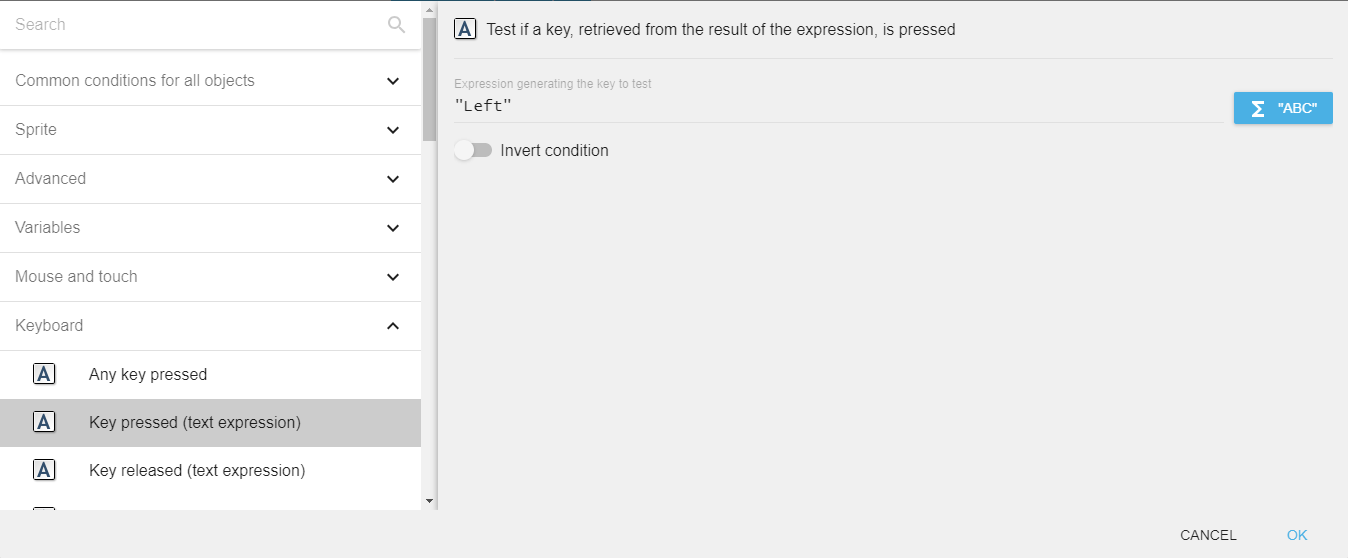
Key pressed (text expression)
To test a key press using this condition, you need to enter the key name in the form of text expression. For example, if you want to check condition for left arrow key press, you need to enter "Left" in the field.
Danger
Make sure that the key name is surrounded by quotes. Key names are case-sensitive.
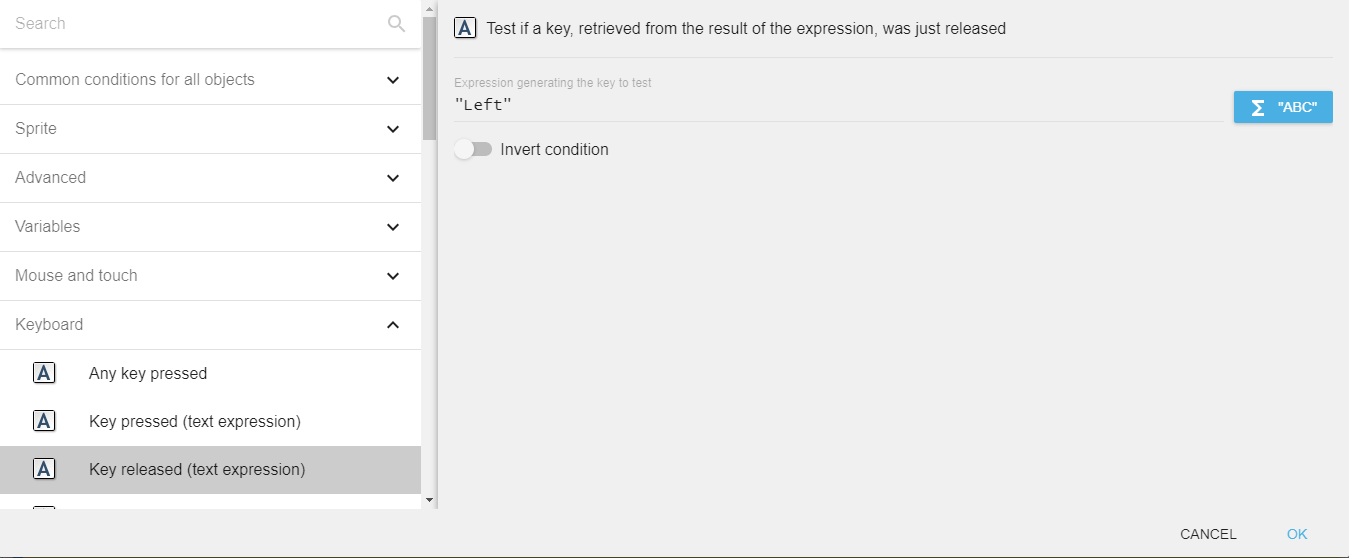
The same approach is used for the "Key just pressed" and "Key released" text-expression variants. This is useful when the key to check is dynamic — for example, when reading a key binding from a variable for customizable controls.
Last key pressed
"Last key pressed" expression returns the last key press in the form of a string. For example, if the last key press is the left arrow key, the expression will return "Left".
Reference
All actions, conditions and expressions are listed in the keyboard reference page.